
Customize Ubuntu SSH Login Screen with Server Information and Custom MOTD
Customize Ubuntu SSH Login Screen with Server Information and Custom MOTD
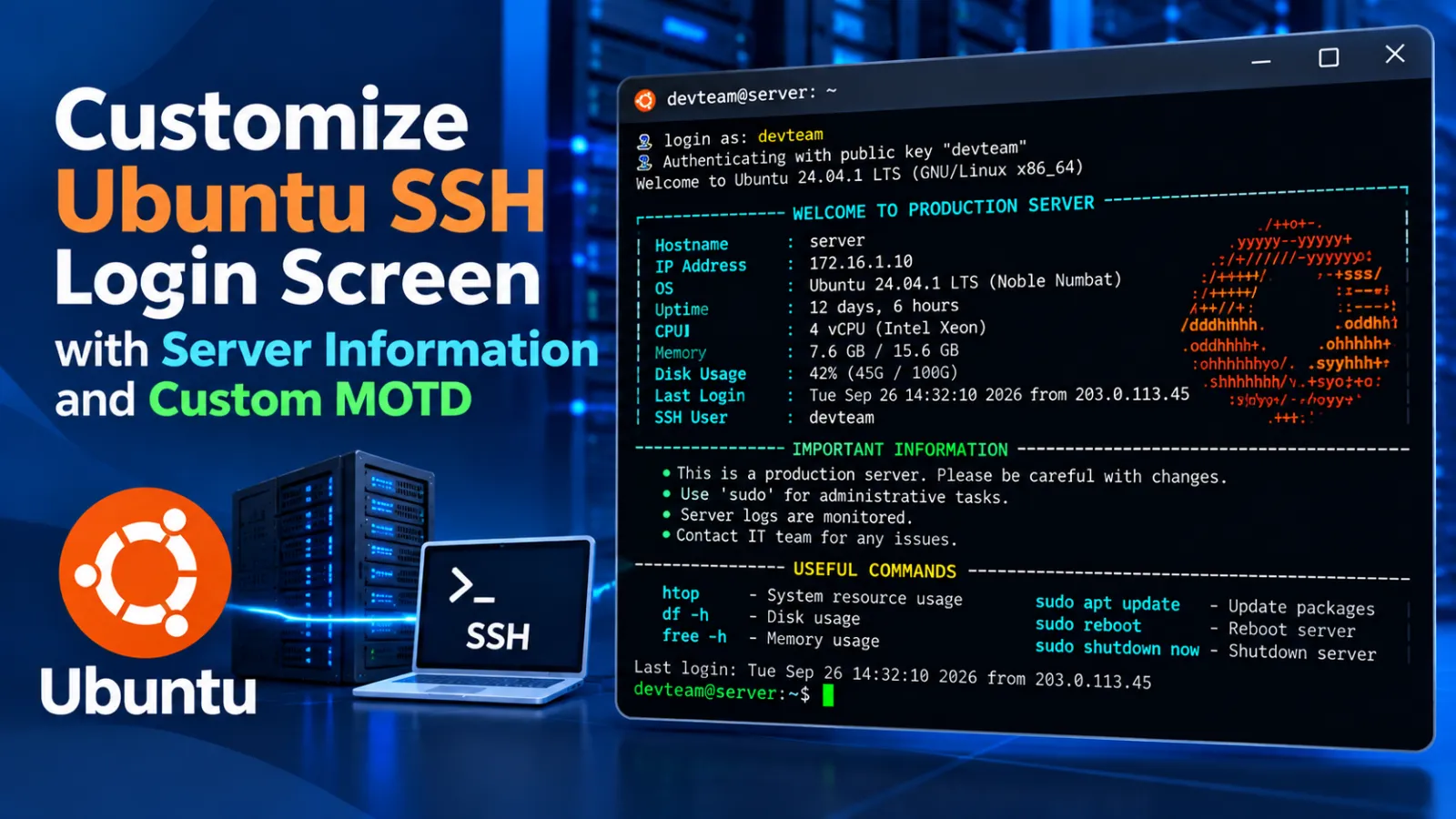
This tutorial shows how to customize the Ubuntu login message (MOTD) so that, after connecting to the server, you can see a custom welcome message along with useful server information such as the Ubuntu version, last login, public IP, hostname, uptime, load average, memory, disk usage, CPU usage, reboot status, and available updates.
Suggested categories: Linux, Ubuntu, Server Administration, DevOps
What Is MOTD?
MOTD means Message of the Day. Ubuntu can display scripts from /etc/update-motd.d/ when a user logs in through SSH or opens a login shell.
In this setup, the default MOTD scripts are disabled and a custom script named 00-custom is created.
Step 1: Disable the Default MOTD Scripts
Run:
sudo chmod -x /etc/update-motd.d/*This removes executable permission from the existing MOTD scripts.
Step 2: Create the Custom MOTD Script
Create a new script:
sudo vim /etc/update-motd.d/00-customAdd the following content:
#!/bin/bash

# Colors
RED="\033[1;31m"
GREEN="\033[1;32m"
YELLOW="\033[1;33m"
BLUE="\033[1;34m"
CYAN="\033[1;36m"
MAGENTA="\033[1;35m"
WHITE="\033[1;37m"
NC="\033[0m" # No Color

# Version
[ -r /etc/lsb-release ] && . /etc/lsb-release
if [ -z "$DISTRIB_DESCRIPTION" ] && [ -x /usr/bin/lsb_release ]; then
    DISTRIB_DESCRIPTION=$(lsb_release -s -d)
fi

# Header
clear
echo -e "${CYAN}============================================================"
echo -e "   Welcome to ${GREEN}Techsum Server 🚀${NC}"
echo -e "${CYAN}============================================================${NC}"
printf "${WHITE}System Info: ${YELLOW}%s (%s %s %s)${NC}\n" \
    "$DISTRIB_DESCRIPTION" "$(uname -o)" "$(uname -r)" "$(uname -m)"
echo

# Last login info
last_login=$(last -n 2 -F -i -w "$(whoami)" | sed -n '2p')
last_ip=$(echo "$last_login" | awk '{print $(NF)}')
last_ip=${last_ip:-local}
last_date=$(echo "$last_login" | awk '{print $4" "$5" "$6" "$7}')

echo "Last login: $(lastlog -u $USER | awk 'NR==2 {print $4,$5,$6,$7,"from",$3}')"
echo

# Current public IP
public_ip=$(curl -s ifconfig.me || echo "N/A")
echo -e "${BLUE}Public IP :${NC} ${YELLOW}$public_ip${NC}"
echo

# System info
HOSTNAME=$(hostname)
UPTIME=$(uptime -p)
LOAD=$(awk '{print $1,$2,$3}' /proc/loadavg)
MEMORY=$(free -h | awk '/Mem:/ {print $3 "/" $2}')
DISK=$(df -h / | awk 'NR==2 {print $3 "/" $2 " (" $5 ")"}')
CPU=$(top -bn1 | grep "Cpu(s)" | awk '{print 100 - $8"%"}')

echo -e "${GREEN}Hostname   :${NC} ${WHITE}$HOSTNAME${NC}"
echo -e "${GREEN}Uptime     :${NC} ${WHITE}$UPTIME${NC}"
echo -e "${GREEN}Load Avg   :${NC} ${WHITE}$LOAD${NC}"
echo -e "${GREEN}Memory     :${NC} ${WHITE}$MEMORY${NC}"
echo -e "${GREEN}Disk Root  :${NC} ${WHITE}$DISK${NC}"
echo -e "${GREEN}CPU Usage  :${NC} ${WHITE}$CPU${NC}"
echo

# Reboot required
if [ -x /usr/lib/update-notifier/update-motd-reboot-required ]; then
    echo -e "${RED}⚠️  Reboot Required!${NC}"
    /usr/lib/update-notifier/update-motd-reboot-required
    echo
fi

# Updates available
stamp="/var/lib/update-notifier/updates-available"
if [ -r "$stamp" ]; then
    echo -e "${YELLOW}System Updates:${NC}"
    cat "$stamp"
    echo
fi

find $stamp -newermt 'now-7 days' 2> /dev/null | grep -q -m 1 '.' || \
    /usr/share/update-notifier/notify-updates-outdated

echo -e "${YELLOW}============================================================"
echo -e "${BOLD}${GREEN} All The Best  ${CYAN}For Any Support Call Your name @ContactNO 🚀${NC}"
echo -e "${YELLOW}============================================================${NC}
Step 3: Make the Script Executable
After saving the file, make it executable:
sudo chmod +x /etc/update-motd.d/00-customStep 4: Test the MOTD
You can run all enabled MOTD scripts manually:
run-parts /etc/update-motd.dThis lets you test the output without logging out and reconnecting.
What Information Does the Script Display?
- Ubuntu / OS version
- Last login information
- Current public IP address
- Hostname
- System uptime
- Load average
- Memory usage
- Root disk usage
- CPU usage
- Reboot required status
- Available system updates
- Custom support message
Example Login Screen
============================================================
   Welcome to Techsum Server 🚀
============================================================
System Info: Ubuntu 24.04.x LTS (GNU/Linux 6.x.x x86_64)

Last login: ...

Public IP : 203.x.x.x

Hostname   : my-server
Uptime     : up 12 days
Load Avg   : 0.10 0.08 0.05
Memory     : 2.1Gi/7.7Gi
Disk Root  : 18G/40G (45%)
CPU Usage  : 12%

============================================================
 All The Best  For Any Support Call Your name @ContactNO 🚀
============================================================Techsum Server, the support text, and other displayed values inside /etc/update-motd.d/00-custom.Useful Commands
View the Custom Script
sudo cat /etc/update-motd.d/00-customCheck File Permissions
ls -l /etc/update-motd.d/00-customRun the MOTD Manually
run-parts /etc/update-motd.dCheck Available MOTD Scripts
ls -l /etc/update-motd.d/Quick Setup
sudo chmod -x /etc/update-motd.d/*

sudo vim /etc/update-motd.d/00-custom

sudo chmod +x /etc/update-motd.d/00-custom

run-parts /etc/update-motd.d
Important Notes
The script uses curl -s ifconfig.me to obtain the current public IP address. Therefore, the server needs outbound network access for that value to be displayed.
The script also reads system information from local commands such as free, df, uptime, top, and lastlog.
${BOLD}, but the provided script does not define a BOLD variable. If your shell does not already provide that variable, that part may not display as intended.Suggested final title: Customize Ubuntu SSH Login Screen with Server Information and Custom MOTD
Discussion (0)