
AWS Ubuntu: Add a User with Password Login
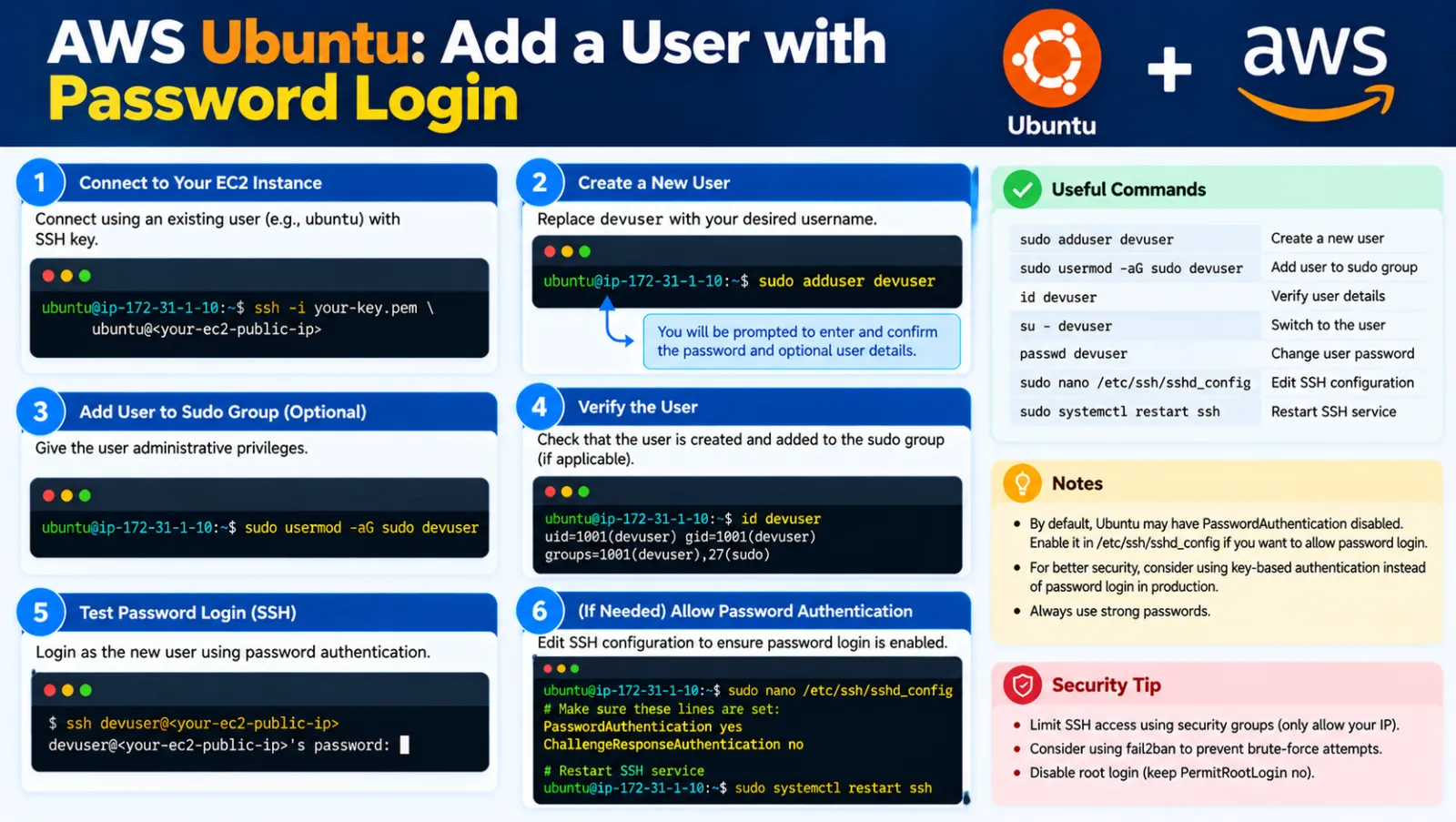
AWS Ubuntu: Add a User with Password Login
Create a new Ubuntu user, enable SSH password login, manage group access, and control sudo and shell permissions.
Security: Prefer SSH keys for production servers. Never publish real passwords or AWS credentials.
1. Create User
sudo adduser devteam
Set a strong password when Ubuntu asks for it.
2. Add Required Groups
sudo usermod -aG www-data devteam sudo usermod -aG ubuntu devteam sudo usermod -aG sudo devteam
Check the groups:
groups devteam
3. Enable SSH Password Login
Back up the SSH configuration first:
sudo cp /etc/ssh/sshd_config /etc/ssh/sshd_config-bkp
Edit the SSH configuration:
sudo vim /etc/ssh/sshd_config
Make sure this is enabled:
PasswordAuthentication yes
For normal user administration, direct root SSH login is not required. A safer setting is:
PermitRootLogin no
4. Check AWS Ubuntu SSH Settings
Also check:
sudo vim /etc/ssh/sshd_config.d/60-cloudimg-settings.conf
If it contains:
PasswordAuthentication no
change it to:
PasswordAuthentication yes
5. Restart SSH
sudo systemctl daemon-reload sudo systemctl restart ssh
Keep your current SSH session open and test a second connection before closing it.
6. Check SSH Port
sudo ss -tulpn | grep ssh
7. Test the New User
From another machine:
ssh devteam@SERVER_IP
Enter the password created for devteam.
8. Remove Sudo Access
sudo gpasswd -d devteam sudo groups devteam
9. Remove or Restore Shell Access
Disable interactive shell:
sudo usermod -s /usr/sbin/nologin devteam getent passwd devteam
Restore Bash:
sudo usermod -s /bin/bash devteam
10. Force Password Change
sudo chage -d 0 devteam
Quick Examples
File access only:
sudo usermod -aG www-data devteam sudo gpasswd -d devteam sudo
Administrator access:
sudo usermod -aG sudo devteam
No interactive shell:
sudo usermod -s /usr/sbin/nologin devteam
Complete Command Reference
Quick reference for the main commands used in this tutorial.
User & Groups
# Create user
sudo adduser devteam

# Add web-server group
sudo usermod -aG www-data devteam

# Add Ubuntu group
sudo usermod -aG ubuntu devteam

# Add sudo access
sudo usermod -aG sudo devteam

# Check groups
groups devteam

# Remove sudo access
sudo gpasswd -d devteam sudo
Shell Access
# Disable shell
sudo usermod -s /usr/sbin/nologin devteam

# Check account
getent passwd devteam

# Restore Bash
sudo usermod -s /bin/bash devteam
Password
# Force password change at next login
sudo chage -d 0 devteam
SSH
# Back up SSH configuration
sudo cp /etc/ssh/sshd_config /etc/ssh/sshd_config-bkp

# Edit SSH configuration
sudo vim /etc/ssh/sshd_config

# Restart SSH
sudo systemctl daemon-reload
sudo systemctl restart ssh

# Check SSH listener
sudo ss -tulpn | grep ssh
Security Notes
- Prefer SSH key authentication on production servers.
- Do not enable direct root SSH login unless specifically required.
- Give users only the groups they need.
- Do not publish real passwords in tutorials or repositories.
Conclusion
With adduser, usermod, gpasswd, and chage, you can quickly create and manage Ubuntu users on AWS.
Discussion (0)