
Allow Access to All Buckets Without Delete Access
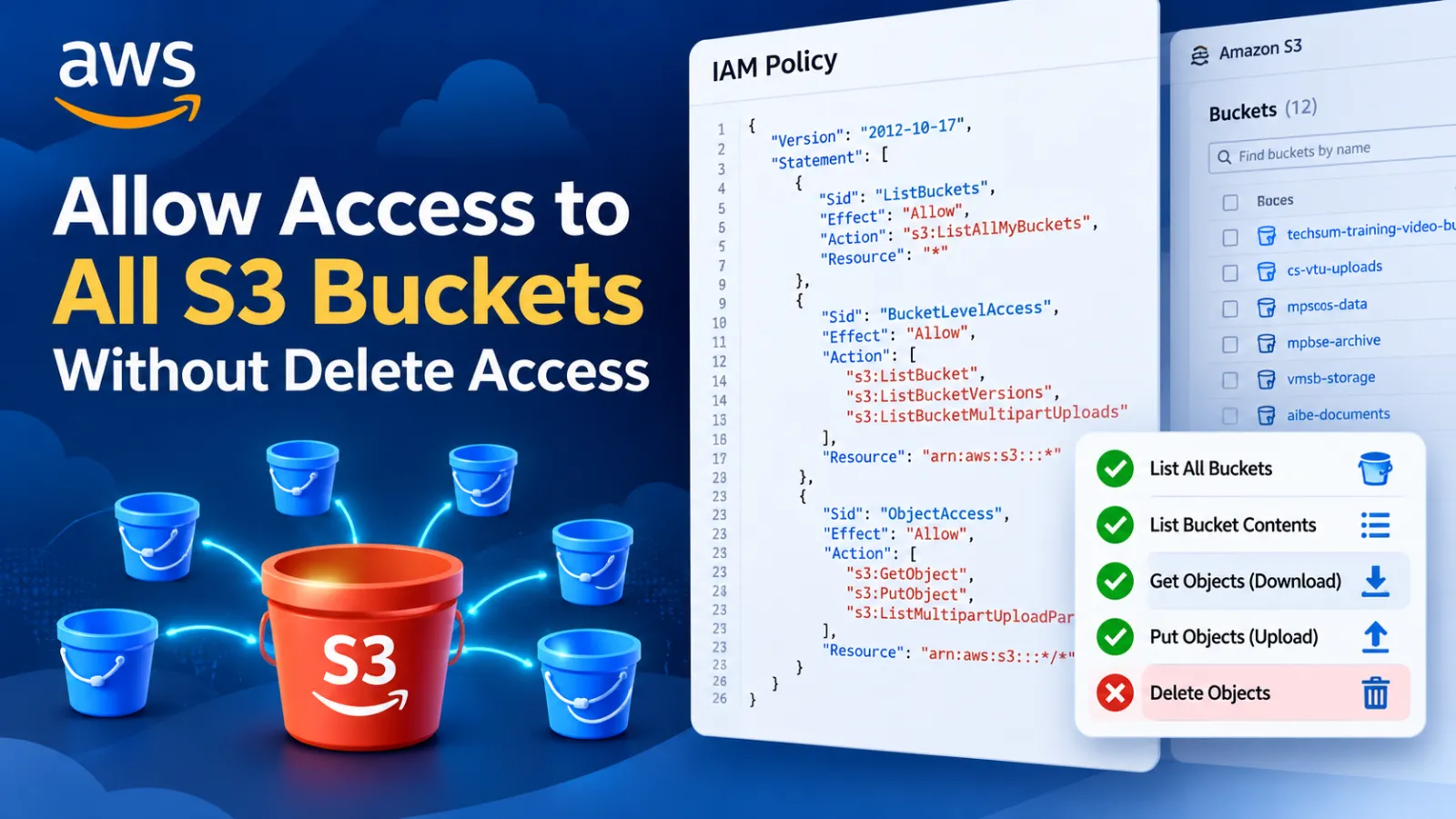
AWS S3: Allow Access to All Buckets Without Delete Access
This tutorial shows how to create an AWS IAM policy that allows a user to access objects across S3 buckets without granting S3 delete permissions. The policy allows bucket listing, bucket-level read/list operations, object download and object upload, including multipart-upload operations.
This can be useful when you need to give a developer, support user, or operations account access to multiple S3 buckets without giving that account S3 delete permissions.
Suggested categories: AWS, S3, IAM, Security
What We Will Create
The setup contains two main resources:
AWS IAM
   │
   ├── Custom Policy
   │      S3AllBucketsNoDeleteAccess
   │
   └── IAM User
          developer1
             │
             └── Attached custom policy
The IAM user will be able to list S3 buckets, read objects and upload objects, but this policy does not grant S3 delete actions.
s3:DeleteObject or another S3 delete action, that additional permission can still apply. Review all policies attached to the user, group, and applicable roles.Step 1: Open IAM in AWS Console
Sign in to the AWS Management Console and open:
IAM → PoliciesClick:
Create policyStep 2: Select the JSON Policy Editor
In the policy editor, select the JSON option and replace the existing policy document with the following:
{
    "Version": "2012-10-17",
    "Statement": [
        {
            "Sid": "ListBuckets",
            "Effect": "Allow",
            "Action": "s3:ListAllMyBuckets",
            "Resource": "*"
        },
        {
            "Sid": "BucketLevelAccess",
            "Effect": "Allow",
            "Action": [
                "s3:ListBucket",
                "s3:ListBucketVersions",
                "s3:ListBucketMultipartUploads"
            ],
            "Resource": "arn:aws:s3:::*"
        },
        {
            "Sid": "ObjectLevelAccess",
            "Effect": "Allow",
            "Action": [
                "s3:GetObject",
                "s3:PutObject",
                "s3:ListMultipartUploadParts"
            ],
            "Resource": "arn:aws:s3:::*/*"
        }
    ]
}
Step 3: Review What the Policy Allows
List All S3 Buckets
"Action": "s3:ListAllMyBuckets"This allows the user to list the S3 buckets visible to the account.
Bucket-Level Operations
"Action": [
    "s3:ListBucket",
    "s3:ListBucketVersions",
    "s3:ListBucketMultipartUploads"
]
These permissions allow the user to list bucket contents, list object versions, and list multipart uploads.
Object-Level Operations
"Action": [
    "s3:GetObject",
    "s3:PutObject",
    "s3:ListMultipartUploadParts"
]
These permissions allow the user to download/read objects, upload objects, and list the parts of multipart uploads.
Step 4: Create the Custom Policy
Continue to the next step of the policy wizard and enter a meaningful policy name.
Example:
S3AllBucketsNoDeleteAccessYou can also use a name such as:
S3-Full-Object-Access-No-DeleteAdd an optional description, for example:
Allow access to all S3 buckets and objects without S3 delete permissions.Click:
Create policyStep 5: Create the IAM User
Open:
IAM → UsersClick:
Create userEnter the username you want to use. For example:
developer1Continue through the user-creation wizard according to how the account will be used.
Step 6: Attach the Custom S3 Policy
During the permissions step, choose the option to attach policies directly to the user.
Search for:
S3AllBucketsNoDeleteAccessSelect the policy and attach it to the user.
Step 7: Verify the User Permissions
Open the newly created IAM user and check the user's Permissions tab.
Confirm that the custom policy is attached and that the policy document contains the expected S3 actions.
Step 8: Test S3 Access
When using the AWS Console or an authorized AWS CLI/API session for this user, test bucket listing first.
aws s3 lsThe user should be able to list the buckets that the policy allows them to see.
Test Object Listing
aws s3 ls s3://YOUR-BUCKET-NAME/Test Download
aws s3 cp s3://YOUR-BUCKET-NAME/path/file.txt .Test Upload
aws s3 cp ./file.txt s3://YOUR-BUCKET-NAME/path/file.txtReplace YOUR-BUCKET-NAME with the appropriate bucket name.
Step 9: Delete Access Is Not Included
Notice that the policy does not contain:
s3:DeleteObject
s3:DeleteObjectVersion
s3:DeleteBucket
Therefore, this policy does not grant those delete permissions.
s3:PutObject can overwrite an existing object when the same object key is written again, depending on the bucket's configuration and other controls. "No delete access" therefore does not mean "cannot modify existing objects."Optional: Stronger No-Delete Protection
If your requirement is not only "this policy does not grant delete access" but also "the user must never be able to delete S3 data", review all other permissions first. An explicit Deny can be used as an additional safeguard because an explicit deny overrides an allow.
A stronger policy can include an additional statement such as:
{
    "Sid": "ExplicitlyDenyDelete",
    "Effect": "Deny",
    "Action": [
        "s3:DeleteObject",
        "s3:DeleteObjectVersion",
        "s3:DeleteBucket"
    ],
    "Resource": [
        "arn:aws:s3:::*",
        "arn:aws:s3:::*/*"
    ]
}Permissions Summary
| Operation | Allowed by Supplied Policy |
|---|---|
| List all buckets | Yes |
| List bucket contents | Yes |
| List bucket versions | Yes |
| Read / download objects | Yes |
| Upload objects | Yes |
| List multipart upload parts | Yes |
| Delete objects / versions / buckets | Not granted by this policy |
Final Setup
IAM
 │
 ├── Policies
 │     └── S3AllBucketsNoDeleteAccess
 │              │
 │              ▼
 │        developer1
 │
 └── User Permissions
        ├── s3:ListAllMyBuckets
        ├── s3:ListBucket
        ├── s3:ListBucketVersions
        ├── s3:ListBucketMultipartUploads
        ├── s3:GetObject
        ├── s3:PutObject
        └── s3:ListMultipartUploadParts

        No S3 delete action is granted
        by the supplied Allow policy.
Important Security Notes
- Use a separate IAM user or role for each person or application instead of sharing credentials.
- Grant only the permissions actually required for the workload.
- Review all attached identity policies, groups, permissions boundaries, and other applicable controls before relying on "no delete" behavior.
- For workloads running on AWS compute services, prefer IAM roles where appropriate instead of long-lived access keys.
- Remember that upload permission can allow an existing object key to be overwritten.
Quick Steps
1. Open AWS IAM
2. Go to Policies
3. Click Create policy
4. Select JSON
5. Paste the S3 policy
6. Name it S3AllBucketsNoDeleteAccess
7. Create the policy
8. Go to IAM → Users
9. Create user, for example developer1
10. Attach S3AllBucketsNoDeleteAccess
11. Verify permissions
12. Test S3 list, download and upload operations
Suggested final title: AWS S3: Give All-Bucket Access Without Delete Permissions
Discussion (0)