
Backup and Restore AWS RDS SQL Server Database Using Amazon S3
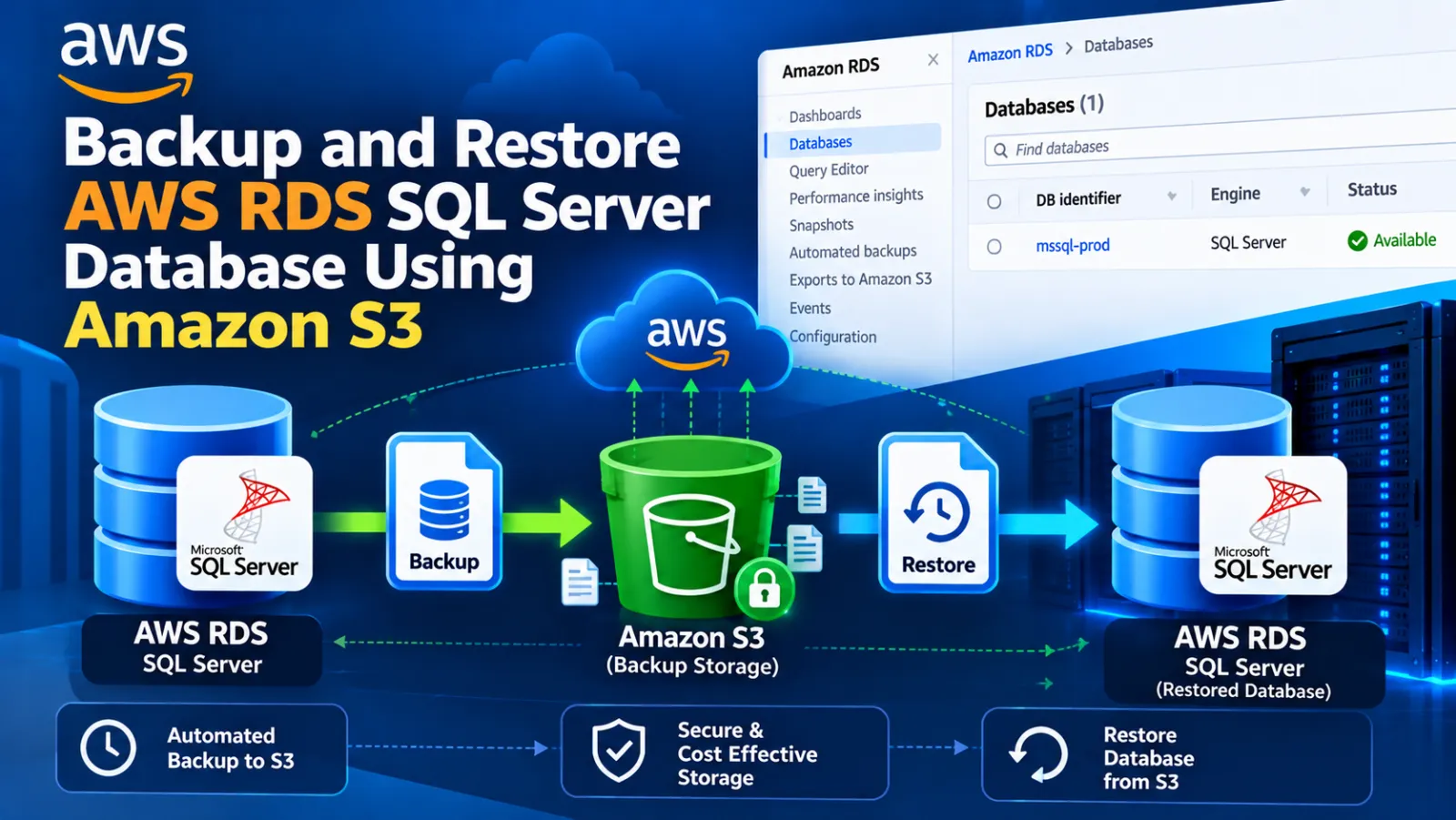
Backup and Restore an AWS RDS SQL Server Database Using Amazon S3
This tutorial explains how to enable the SQL Server Backup and Restore option on an AWS RDS for SQL Server instance and then use the RDS stored procedures to restore a .bak file from Amazon S3 or create a full database backup in Amazon S3.
Categories: AWS, SQL Server, Cloud
1. Before You Start
- An Amazon RDS for SQL Server instance.
- An Amazon S3 bucket for the backup files.
- The correct SQL Server engine/version for your RDS instance.
- Permission to modify the RDS option group and IAM configuration.
The backup and restore feature is enabled through an RDS Option Group. After the option is added and the option group is attached to the RDS instance, the SQL Server procedures in the msdb database can be used for backup and restore tasks.
2. Create an RDS Option Group
Open the AWS Console and go to:
Amazon RDS → Option Groups- Click Create group.
- Give the option group a name.
- Add a description.
- Select the SQL Server engine and the SQL Server version used by the RDS instance.
- Create the option group.
📷 Screenshot placeholder: RDS Console → Option Groups → Create option group.
3. Add the SQL Server Backup and Restore Option
Open the newly created option group and click Add option.
- For Option name, select
SQLSERVER_BACKUP_RESTOREor the corresponding SQL Server Backup and Restore option shown for your RDS engine. - For the IAM role, choose New IAM role and give the role a suitable name.
- For the S3 destination, select the S3 bucket that will store or provide the backup files.
- For scheduling, choose Immediately.
- Save the option.
The option connects the RDS SQL Server backup/restore feature with the selected S3 bucket and IAM role.
📷 Screenshot placeholder: Option Group → Add option → SQL Server Backup and Restore.
📷 Screenshot placeholder: IAM role, S3 destination and scheduling settings.
4. Attach the Option Group to the RDS Instance
- Go to Amazon RDS → Databases.
- Select your SQL Server RDS instance.
- Click Modify.
- In the Additional configuration section, find Option group.
- Select the newly created option group.
- Choose Apply immediately.
- Save the changes.
📷 Screenshot placeholder: RDS instance → Modify → Additional configuration → Option group.
Wait for the option-group change to be applied before starting backup or restore tasks.
5. Restore a SQL Server Database from S3
Once the option group is active, connect to the RDS SQL Server database and execute the RDS restore procedure.
EXEC msdb.dbo.rds_restore_database
     @restore_db_name = 'CRM_MasterDB',
     @s3_arn_to_restore_from = 'arn:aws:s3:::YOUR_BUCKET_NAME/restore/CRM_MasterDB.bak';
In this example:
@restore_db_nameis the database name that will be created/restored.@s3_arn_to_restore_fromis the full S3 ARN of the.bakfile.
Example S3 path:
s3://YOUR_BUCKET_NAME/restore/CRM_MasterDB.bak📷 Screenshot placeholder: SQL Server Management Studio showing the restore command and result.
6. Check the Restore Task Status
RDS runs the restore as a task. Use the RDS task-status procedure to check the progress and result.
EXEC [msdb].[dbo].[rds_task_status] @task_id = 22;Replace 22 with the task ID returned by the restore operation.
📷 Screenshot placeholder: Result of rds_task_status showing the restore task.
7. Back Up a SQL Server Database to S3
To create a full backup in Amazon S3, use the RDS backup procedure.
EXEC [msdb].[dbo].[rds_backup_database]
    @source_db_name = 'Grievance_MasterDB',
    @s3_arn_to_backup_to = 'arn:aws:s3:::YOUR_BUCKET_NAME/DbBackup/grievance/Grievance_MasterDB_BACKUP.bak',
    @overwrite_s3_backup_file = 1,
    @type = 'Full',
    @number_of_files = 1;
GO
In this example:
@source_db_nameis the database to back up.@s3_arn_to_backup_tois the destination S3 object.@overwrite_s3_backup_file = 1allows the destination file to be overwritten.@type = 'Full'requests a full backup.@number_of_files = 1creates one backup file.
📷 Screenshot placeholder: SQL Server Management Studio showing the backup command.
8. Check the Backup Task Status
After starting a backup, use the task-status procedure with the task ID returned by the RDS backup operation.
EXEC [msdb].[dbo].[rds_task_status] @task_id = 22;Use the actual task ID generated for your backup request rather than always using 22.
9. Optional: KMS Encryption
If your RDS configuration uses an AWS KMS key for the backup operation, the procedure can include the KMS key ARN.
-- , @kms_master_key_arn = 'arn:aws:kms:REGION:ACCOUNT_ID:key/KEY_ID'Only add this parameter when it is required by your RDS backup configuration.
10. Quick Command Reference
Restore
EXEC msdb.dbo.rds_restore_database
     @restore_db_name = 'CRM_MasterDB',
     @s3_arn_to_restore_from = 'arn:aws:s3:::YOUR_BUCKET_NAME/restore/CRM_MasterDB.bak';
Backup
EXEC [msdb].[dbo].[rds_backup_database]
    @source_db_name = 'Grievance_MasterDB',
    @s3_arn_to_backup_to = 'arn:aws:s3:::YOUR_BUCKET_NAME/DbBackup/grievance/Grievance_MasterDB_BACKUP.bak',
    @overwrite_s3_backup_file = 1,
    @type = 'Full',
    @number_of_files = 1;
GO
Task Status
EXEC [msdb].[dbo].[rds_task_status] @task_id = TASK_ID;11. Important Notes
- Use the SQL Server version that matches your RDS instance when creating the option group.
- Replace
YOUR_BUCKET_NAMEwith your actual S3 bucket name. - Replace the database names and S3 paths with your environment values.
- Record the task ID returned by each backup or restore request so you can monitor it.
- Keep the S3 backup location protected with appropriate IAM permissions.
This method is useful when you need to move a SQL Server .bak file between an RDS SQL Server instance and an Amazon S3 bucket without using a traditional local backup directory on the RDS host.
Discussion (0)