
Get a Free SSL Certificate on Windows Using Win-Acme
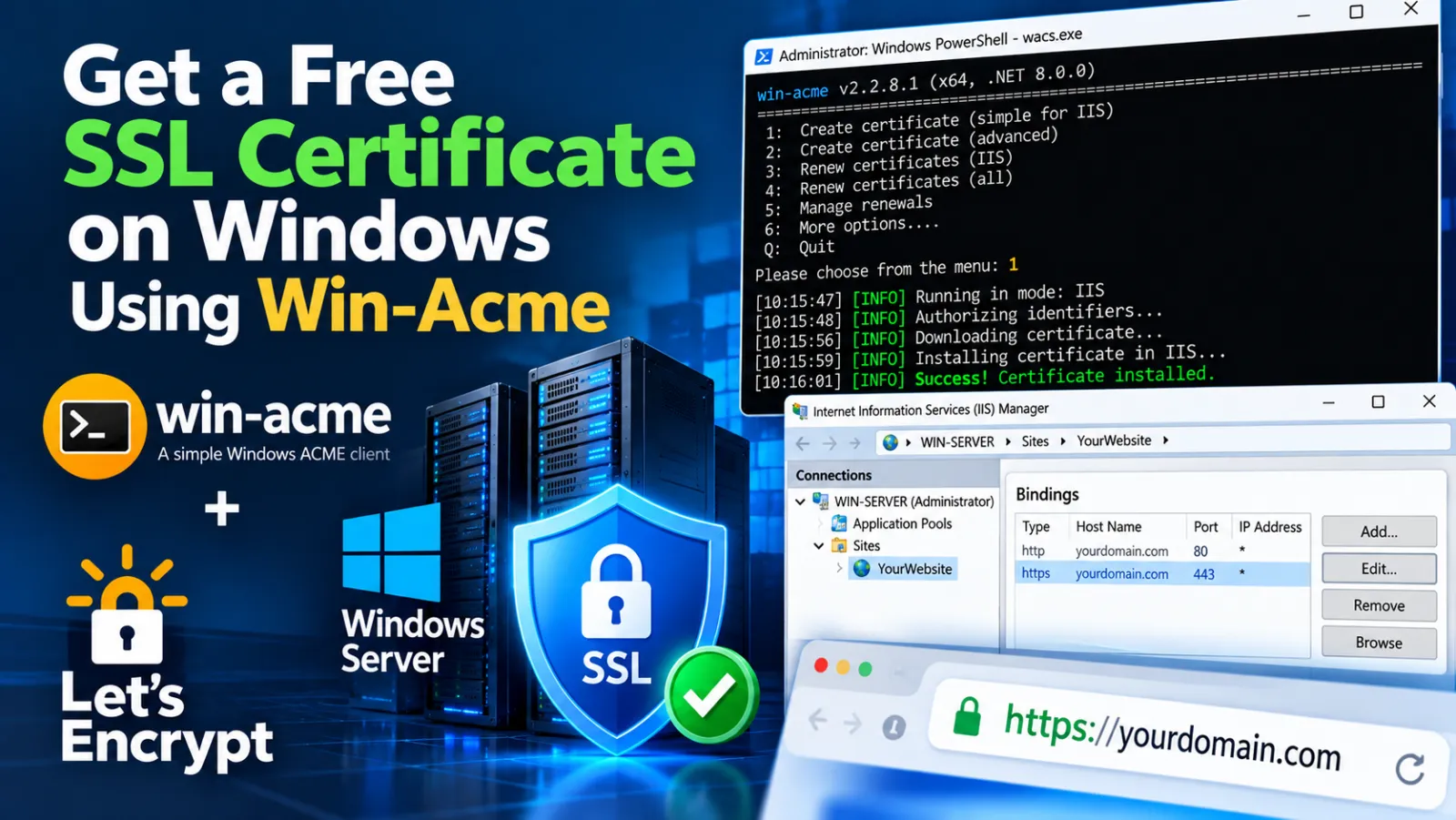
Get a Free SSL Certificate on Windows Using Win-Acme
Install Win-Acme, launch the ACME client, and start certificate creation
| Example values in this tutorial are masked. Replace example.com with your actual website hostname. The supplied screenshots use Win-Acme 2.2.9.1701; newer releases may show different screens. |
1. Download Win-Acme
Download Win-Acme from the official Win-Acme website. The source document includes the official website link; the direct URL is intentionally not reproduced here.
| Official source: search for the official Win-Acme website and download the appropriate Windows ZIP package. |
2. Extract the ZIP file
Extract the downloaded ZIP archive to a folder on the Windows server. The extracted package contains wacs.exe, which is the Win-Acme command-line application.

Win-Acme extracted files. The wacs.exe application is highlighted.
3. Open an Administrator Command Prompt
Open Command Prompt as Administrator, change to the Win-Acme folder, and start the client.
| cd C:\Tools\win-acme wacs.exe |

Example command prompt with the local path replaced by a generic path.
4. Start Win-Acme
When wacs.exe starts, Win-Acme displays its main menu. The supplied screenshot shows the certificate creation and renewal options.

Win-Acme main menu.
5. Choose Certificate Creation
The supplied Win-Acme screen shows the following options:
- N — Create certificate (default settings)
- M — Create certificate (full options)
- R — Run renewals
- A — Manage renewals
- Q — Quit
Choose N when the default configuration is suitable for your site. Use M when you need the full set of certificate creation options.
6. Example IIS Certificate Installation
The supplied example run shows Win-Acme being used with IIS. The screenshot shows a site binding being selected, HTTP-01 validation being performed, a certificate being downloaded and installed, the IIS HTTPS binding being updated, and a renewal task being created.
| The website identifier shown in the source screenshot has been masked as example.com. |

Example Win-Acme certificate installation run with the actual site identifier masked.
7. Verify the HTTPS Binding
After certificate installation, verify the website in IIS and confirm that the HTTPS binding uses the intended certificate.
| # Example verification # 1. Open IIS Manager. # 2. Select the website. # 3. Open Bindings. # 4. Select the HTTPS binding. # 5. Confirm the expected SSL/TLS certificate is selected. https://example.com/ |
8. Renewal
The supplied example also shows Win-Acme creating a scheduled renewal task. This task is used to automate future certificate renewals.
9. Important Notes
- Replace example.com with your real website hostname.
- Run wacs.exe from an Administrator Command Prompt when IIS or certificate-store changes require elevated permissions.
- The exact prompts can vary with the Win-Acme version and the IIS bindings configured on the server.
- The supplied source document covers the initial Win-Acme launch and an example IIS certificate run; it does not document every possible validation method or prompt.
Discussion (0)