
Learn Typing for Kids with Python and Pygamme
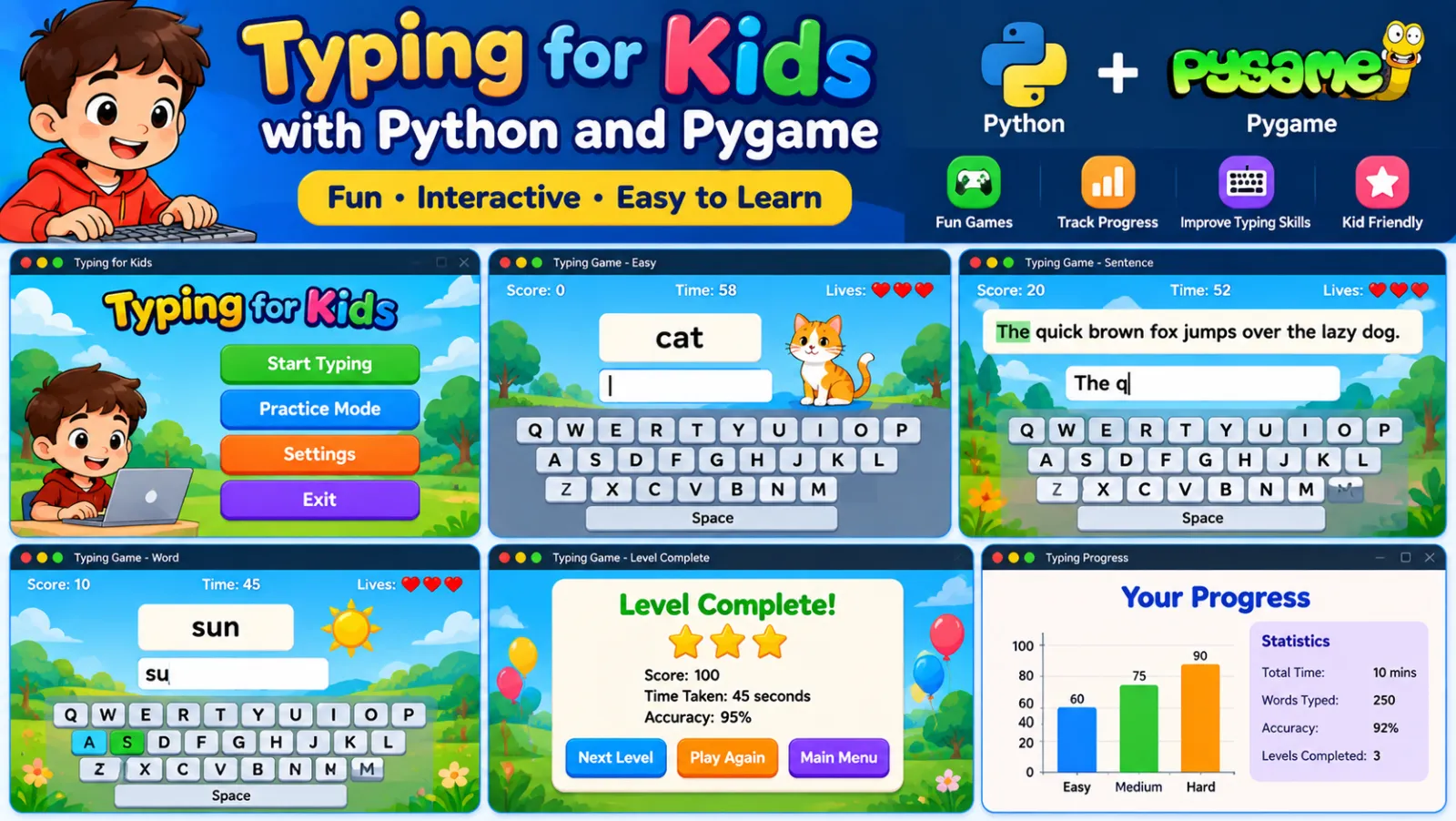
Learn Typing for Kids with Python and Pygame
This project is a kid-friendly desktop learning app built with Python and Pygame. It provides a simple typing mode for practicing letters and an alphabet mode that shows a word and a real photo for the selected letter.
The app also includes voice feedback, Fullscreen mode, image caching, and automatic image lookup from Wikipedia and Wikimedia Commons.
What the App Includes
- Typing Mode for keyboard practice.
- Alphabet Mode with words and real photos.
- Automatic image download and local caching.
- Voice feedback using text-to-speech.
- Fullscreen Pygamme window.
- Mouse cursor support.
- No-repeat word selection for each letter.
1. Requirements
The application uses Python and the following third-party packages:
pip install pygame pyttsx3 requestsPython's built-in modules such as threading, queue, random, os, and datetime do not need to be installed separately.
2. Save the Python File
Save the project as:
learn_typing_for_kids.pyThe complete source code is available as an attachment to this tutorial.
3. Run the App
python learn_typing_for_kids.pyThe application opens in Fullscreen mode.
4. Typing Mode
Typing Mode turns the screen into a large, simple typing area. Every character typed by the child is displayed on the screen and spoken aloud.
The typing cursor can be moved with the keyboard, and the child can create multiple lines of text.
F1 = Typing Mode
F2 = Alphabet Mode
F12 = Exit
Typing Controls
Enter      → New line
Space      → Insert space
Backspace  → Delete previous character
Delete     → Delete next character
Left/Right → Move cursor
Up/Down    → Move between lines
Home       → Move to line start
End        → Move to line end
Caps Lock  → Toggle uppercase mode
5. Alphabet Mode
Press F2 to switch to Alphabet Mode. Then press any letter key.
For example, pressing A can display:
A
A for Apple
The app also loads a real photo related to the selected word.
Pressing the same letter again selects another word from that letter's list. Words are shuffled so the same word is not repeatedly shown until the available words for that letter have been used.
6. Letter and Word Data
The project keeps a list of words for every alphabet letter. For example:
"A": [
    "Apple", "Ant", "Aeroplane", "Alligator",
    "Astronaut", "Anchor", "Angel", "Apricot"
]
The full project contains word lists for A through Z.
7. Real Images
The app tries several online sources to find an image for each word.
- Manual image URL override, when configured.
- Wikipedia page image API.
- Wikipedia REST summary API.
- Wikimedia Commons search.
This lets the app automatically find suitable images without requiring an API key.
8. Local Image Cache
Downloaded images are stored locally in:
abc_images/This means that after an image has been downloaded, the application can use the cached copy instead of downloading it again.
The application also keeps a missing-image log for words whose images could not be downloaded automatically.
9. Voice Support
The application uses pyttsx3 for offline text-to-speech.
tts_engine = pyttsx3.init()
tts_engine.setProperty('rate', 155)
tts_engine.setProperty('volume', 1.0)
Typing characters and changing modes can trigger spoken feedback, which helps children connect the keyboard input with the sound of the letter.
10. How the App Handles Images
Image downloading runs in a background thread so the main Pygame window can continue responding while an image is being downloaded.
The application uses queues to send image requests to the worker and return completed images to the main window.
img_req_q = queue.Queue()
img_res_q = queue.Queue()
11. Main Application Modes
MODE_TYPING   = "typing"
MODE_ALPHABET = "alphabet"

current_mode = MODE_TYPING
The main loop checks the current mode and draws the appropriate screen.
12. Main Keyboard Controls
F1      → Typing Mode
F2      → Alphabet Mode
F12     → Exit
CapsLock → Uppercase toggle
In Alphabet Mode, pressing a letter loads the next word for that letter. In Typing Mode, normal keyboard input is written to the screen.
13. Project Folder
A simple project structure can look like:
KidsTypingApp/
├── learn_typing_for_kids.py
└── abc_images/
    ├── apple.jpg
    ├── ant.jpg
    └── ...
The abc_images folder is created automatically by the application when it starts.
14. Manual Image Override
When an image cannot be found automatically, the source code supports manual image URLs:
MANUAL_IMAGE_URLS = {
    # "Word": "https://direct-link-to-image.jpg",
}
This can be used when a particular word needs a specific image.
15. Simple Learning Flow
Start App
   ↓
Typing Mode
   ↓
Practice letters
   ↓
Press F2
   ↓
Alphabet Mode
   ↓
Press a letter
   ↓
Show word + real photo + voice
   ↓
Press another letter
16. Exit the Application
The application listens for F12 to exit.
F1217. Complete Source Code
The full Python source code is attached to this tutorial as:
learn_typing_for_kids.pyDownload the file, install the required packages, and run it with Python.
Conclusion
This project combines typing practice, alphabet learning, voice feedback, real-world images, and simple keyboard controls into one Python desktop application for children.
It is also a useful example of combining Pygame, background threads, queues, text-to-speech, local caching, and web APIs in a single Python project.
Discussion (0)